There is a type of Excel work that almost everyone recognizes.
You open a file, copy some data, remove a few rows, fix the formatting, enter the same formulas, and then repeat the whole process again the following week.
At first, it might not seem like a big problem.
But when a ten-minute task becomes something you repeat every day or every week, all that time starts to add up.
This is where one of the most useful Excel skills comes in: recognizing which tasks you should not be doing manually every time.
Start by Organizing Your Data Properly
Before thinking about advanced automation, there is a much simpler place to start: organize your data correctly.
Converting a regular range into an Excel Table, for example, can make the file much easier to manage as new rows are added.
Tables also make sorting and filtering easier and allow you to work with structured references and other useful features.
A well-organized file can save you a surprising amount of work later. The course itself covers structured Tables, automatic expansion, sorting and filtering, removing duplicates, and using Tables with PivotTables and dashboards.
Do Not Repeat the Same Calculation Manually
Functions are a major part of Excel, but their value is not simply in memorizing formula names.
The idea is to let Excel do the repetitive work for you.
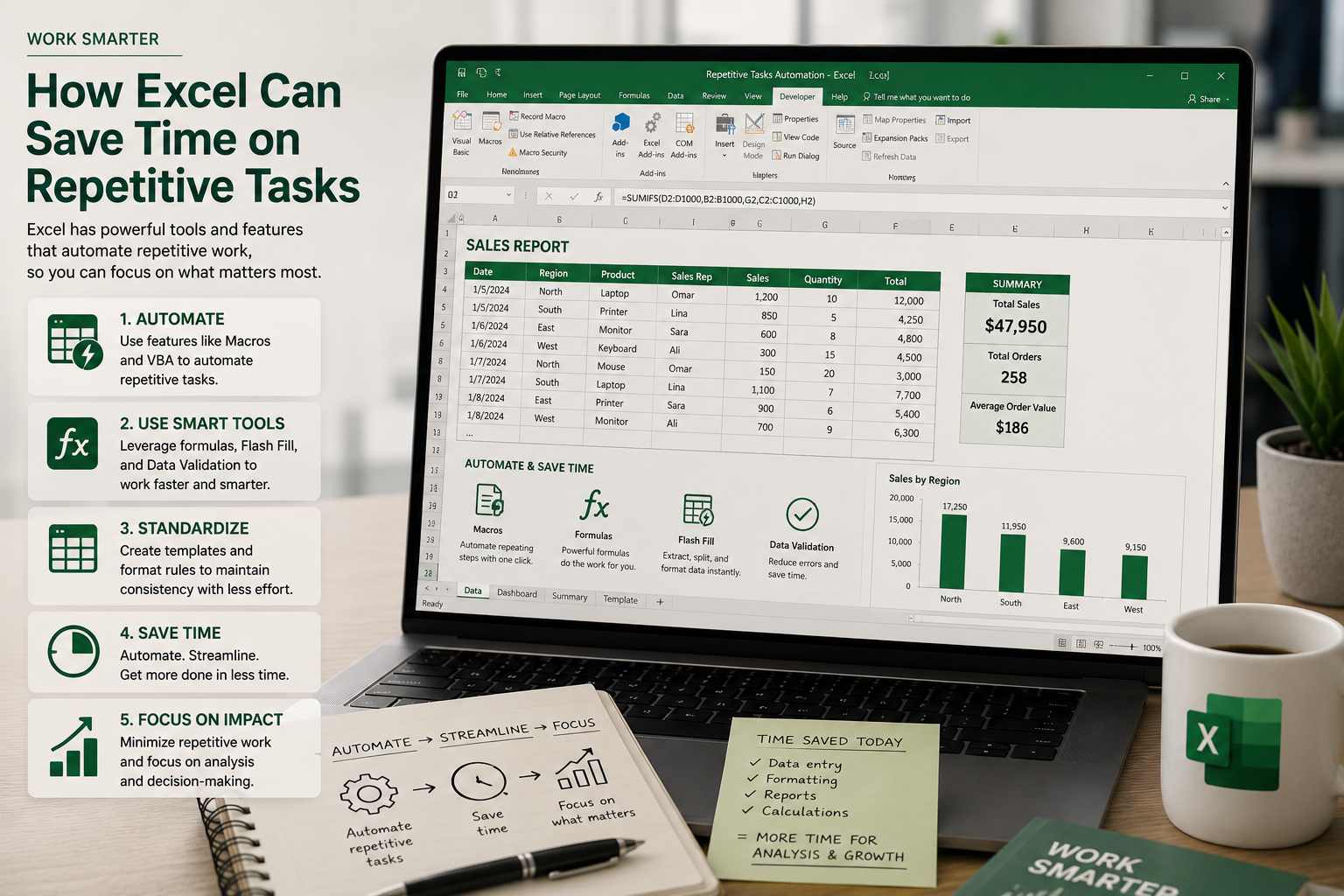
You might use IF to return a result based on a condition, XLOOKUP to find information from another dataset, or SUMIFS to calculate values that meet specific criteria.
When a workbook is designed properly, the formulas continue working as the data changes, which means less manual work every time the file is updated.
This is why learning different types of functions matters. The course covers Logical Functions and Lookup & Reference Functions, along with Text, Date & Time, Mathematical, Statistical, and Financial functions.
When the Data Process Repeats, Try Power Query
Imagine receiving a new report every month.
Each time, you need to clean the data, change some columns, remove unnecessary information, and combine data from different sources before you can even begin your analysis.
Doing this manually every month quickly becomes frustrating.
This is where Power Query can be extremely useful.
You can use it to import data, clean and transform datasets, merge or append queries, and create a process that can be reused when new data arrives.
Instead of repeating the same cleaning steps from the beginning, you can refresh the process and focus on the actual analysis.
These are also the main Power Query skills included in the Advanced Excel course, including the automation of recurring reports.
What About Macros and VBA?
When you have a series of steps that you perform in the same way again and again, Macros can take automation one step further.
The basic idea is simple: let Excel perform a sequence of actions for you.
As you move into VBA, the possibilities become much wider, especially when building files that need to perform repetitive operations or generate reports regularly.
But that does not mean VBA should be used for everything.
A better question to ask is: “What repetitive problem am I trying to solve?”
Then choose the simplest tool that can solve it.
The course follows this same progression, from recording and editing Macros to an introduction to VBA, automating repetitive tasks, and building automated reporting systems.
Good Excel Files Work With You, Not Against You
One of the biggest differences between a beginner and an advanced Excel user is not typing speed or the number of formulas they can remember.
It is the ability to recognize repetitive work and ask:
“Do I really need to do these steps myself every single time?”
As you learn to organize data properly, use functions more effectively, and introduce tools such as Power Query and Macros when needed, your spreadsheets start doing more of the repetitive work for you.
And that is when Excel becomes genuinely valuable in everyday work.










0 Comments
No comments yet.